
Lists
With Lists, you can efficiently manage, organize, and track information, resources, tasks, or issues of any kind. You can individually design the structure of your lists or use and modify existing Microsoft templates (for example, for content schedulers or issue trackers). Microsoft Lists is more flexible than Microsoft Planner and can be adjusted to meet your individual needs. Therefore, this tool is particularly suitable for workflows. Please see the information on data protection and use.
FAQs
How do I create a new list in Lists in my browser?
- Click on “+ Create new.”
You can create lists from scratch, import them from Excel, or select a template. - Enter a name for your list.
- Under “Create in,” select if you want to save the list for you personally or for a team.
- Click on “Create.”
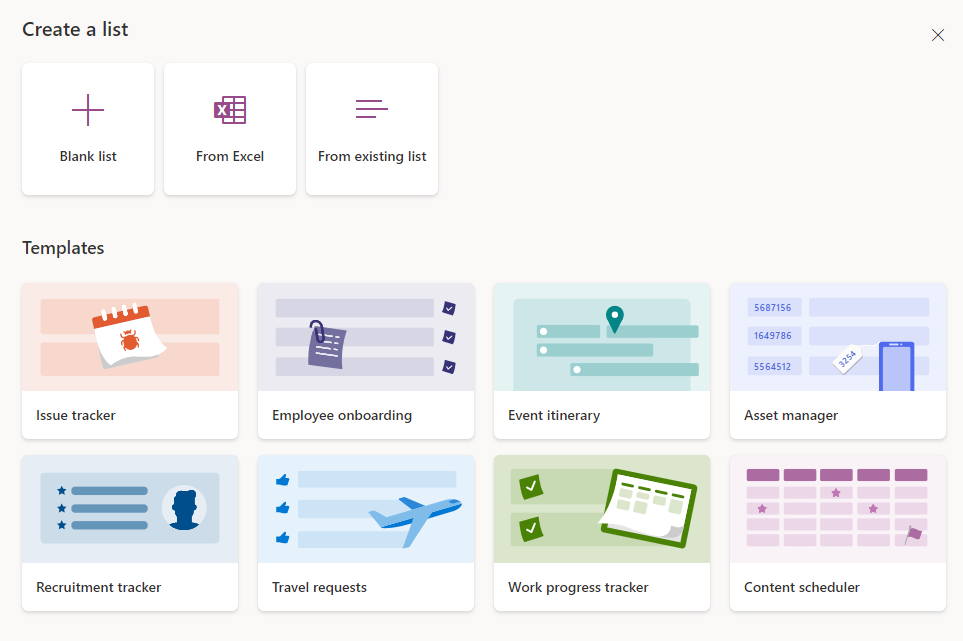
When creating a new list, you first need to enter a name for the list in the “Name” field. The option “Create in” allows you to choose whether you want to create your own list or a list for a team:
- If you choose “My lists,” you will create a personal list.
- If you go to “Recent sites,” you can select a team. The list can then be accessed by all members of the team. You can also add the list to the team in Microsoft Teams.
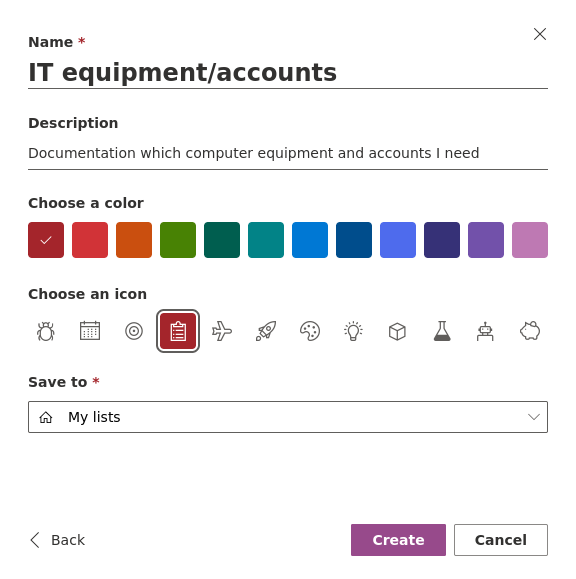
You can also add a description to the list and choose a color and an icon.
Then you can edit the list, share it with others, or export it.- Click on “+ Create new.”
How do I create new items in Lists?
- Open the relevant list.
- In the upper left corner, click on “+ New.”
- Enter a title and the relevant values.
- Click on “Save.”
If you want to add several entries to your list, click on “Edit in grid view.” If you click in the next free line, you will add a new entry.
How do I edit a list?
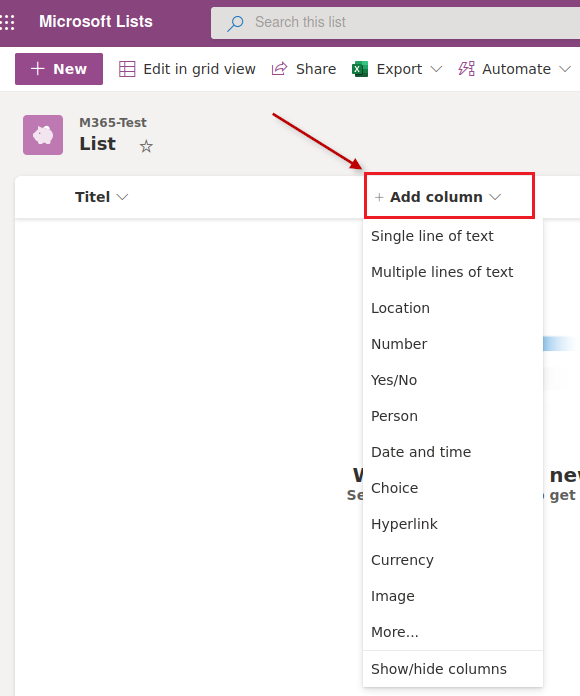
Click on “Add column” to add further columns. Here you can choose between different content types.
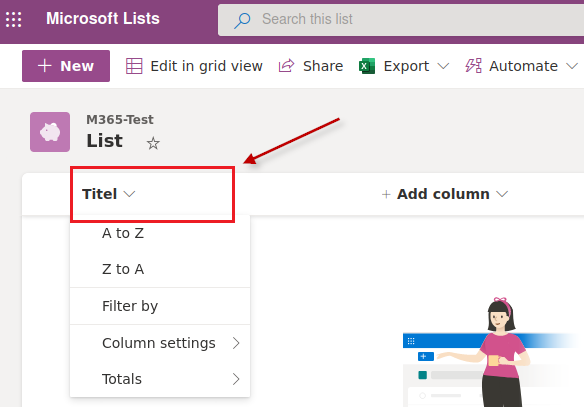
To sort existing columns in an ascending or descending order, click on the title and then select the respective sorting.
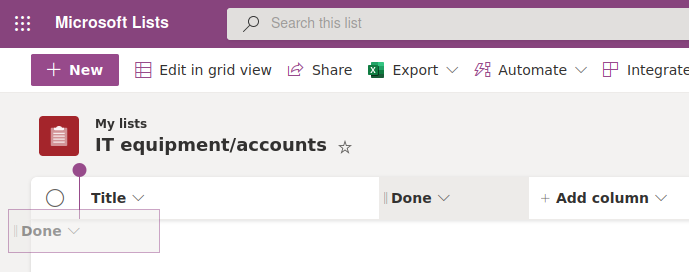
You can customize the order of the columns via drag and drop.
How do I share a list?
- Open the relevant list.
- At the top, click on “Share.”
- Either add the relevant user(s) directly or copy the link.
Tip: You can restrict the sharing permissions for a person or link.
How do I export a list?
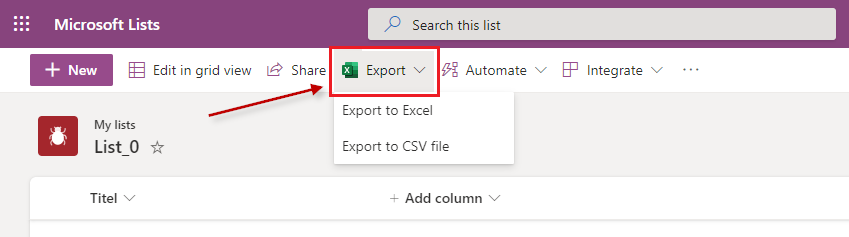
Click on “Export” in the menu bar. Here you can choose whether you want to export the list as a file you can import into Excel or as a CSV file.
Excel will create a table with all entries analogous to the list in Lists. You can edit this table in Excel.

For more information on Lists, please see
the official Microsoft guides.