
Submitting grades as an examiner or as a proxy
Grades are submitted via Portal². You can submit grades when you are listed as the person responsible for the examination in Portal² or when you are listed as the proxy of a person responsible for the examination.
These instructions guide you through the submission process step by step.
1. Select role and menu
Your way to submit grades to the system depends on your role in Portal².
- Submitting grades as a teacher and examiner for your own examinations:
Go to “Teaching” and click on “My courses and exams”. Select the tab “Examinations”. Here, you will see the examinations for which you are authorized to submit grades as an examiner. Select the semester from the drop down menu. - Submitting grades as a proxy for an examiner:
Go to “Teaching” and click on “My courses and exams”. Select the tab “Examinations/Proxy”. A list of all examinations which you can access is displayed. Select the semester from the drop down menu. - Submitting grades as a department admin who is a proxy for a teacher:
Go to “Teaching” and click on “My exams (stand-in)”. A list of all examinations which you can access is displayed. Select the semester from the drop down menu.
- Submitting grades as a teacher and examiner for your own examinations:
2. Naming proxies for submitting grades
As a teacher, i.e. as a person who is responsible for examinations, you can name other persons who can enter and submit grades for your exams or can change settings for you. Please complete the form “Request for assignment of the role „proxy examiner“ for online grade submission in Portal²” and submit it to the Student Services. The form is available here: https://intranet.uni-mannheim.de/intranet/2_Formulare__Satzungen/Formulare/20250131_Antrag_Pruefervertretung_de_en-3.docx (DOCX)
3. Printing a list of participants
Go to Teaching > My courses and exams or to Teaching > My exams (stand-in) Then go to the tab “Examinations” or “Examinations/Proxy”
A list of all examinations for which you are listed as an examiner or proxy of an examiner will be displayed. Select the semester from the drop down menu.
The column “Attendee statistics” displays the current number of participants.
Display a list of participants by clicking on the people icon (in the column “Actions”).
In case the exam takes place in several lecture halls, you can generate individual lists for each lecture hall.
On the bottom of the page, there is an option to generate an Excel sheet with all participants. Further information is available under Lists of participants.

4. Submitting grades in EXA
We strongly recommend to submit grades via “My courses and exams” or “My exams (stand-in)”.
Go to Teaching > My courses and exams or Teaching > My exams (stand-in) and then go to the tab “Examinations” or “Examinations/Proxy”, respectively.
You can submit grades via the Submit grades option on the page or you can import data from an Excel sheet.
4.a Submitting grades directly
Grade submission is done under Teaching > My courses and exams or Teaching > My exams (stand-in). Go to the tab “Examinations” or “Examinations/Proxy”, respectively. Here your examinations are listed. Select the right semester from the dropdown menu.
Go to the respective examination and click on the grade submission symbol (paper with orange pen) in the column Actions.
The window for grade submission opens.
In case the examination took place in several lecture halls, there are several lists for entering grades.Enter the grades of the students in the column Grades:
- Enter only valid grades.
- Enter NE for students who did not show up for the examination.
- Enter TA for students who attempted to cheat.
- Enter KS for students whose grading is not yet finished.
Please note: Please remember that the comment “KS” is only to be submitted as an exception. The actual grading is to be completed as soon as possible. - Please do not enter the comment PA. PA stands for mandatory registration and is a comment that is only to be submitted by the advisor at Student Services.
Please list the students who are not on the participant list or who have quit the examination on a separate sheet.
The following grades may be given:
1,0 | 1,3 | 1,7 | 2,0 | 2,3 | 2,7 | 3,0 | 3,3 | 3,7 | 4,0 |5,0 | NE | TA | KS
In case of ungraded examinations, please enter a plus sign + for ‘passed’ and a minus sign - for ‘not passed’.
Details on acceptable grading options can be viewed by clicking the magnifying glass symbol in the yellow row above.
After entering grades, save them by clicking Save.
The grades are not yet published when they are saved. Students cannot yet see them.
Please go to 5 to read how to complete the grade submission process.
4.b Grade submission in Excel via export/
import The Excel export option allows you download an Excel sheet listing all students registered for an examination and enter the grades in this sheet. This grade sheet can then be imported to EXA-P.
This feature is particularly convenient for submitting many grades.
Exporting the Excel sheet
In order to export the data of an examination, click the button Excel export. The button is located at the bottom of the list.
After clicking Excel export, the download manager of your browser opens and you can save the Excel sheet.
You can now enter the grades in the column Leistung. Please mind the acceptable grades (see 4.a)Important: Do not change the Excel sheet apart from entering grades. The Excel file can longer be imported if it is modified.
The comment "endHISsheet” must be placed under the final student ID number. In no case the comment endHISsheet may be placed before the final student ID number as this would result in an incomplete import of data.
Importing and saving
Click on Upload and select the respective file. Then click on import file. Data from the Excel sheet is being imported to EXA-P. In order to save the grades, click on Save.
The grades are not yet published when they are saved. Students cannot yet see them.
Please go to 5 to read how to complete the grade submission process.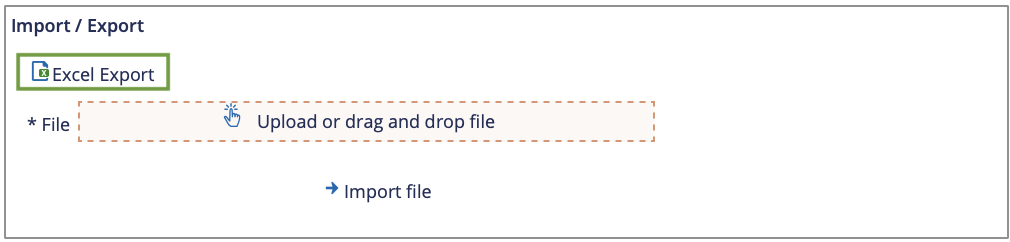
5. Completing grade submission and publishing grades
All grades were entered.
When you have entered grades for all students, save and the click on Complete submission. This button is only active when all students have had a grade entered under Assessment. The process of entering the grades is now complete.
Only part of the grades were entered – Instructions
- Important: There may be several pages of participants. Tip: Set 300 rows per page (enter number, hit enter)
- Selective publishing of grades/
Taking grades back - Select all of this page
- Please make sure that “publish grades” is selected under “grading status”.
- Apply
- Save
Only part of the grades were entered – Instructions
In case you wish to submit grades for only part of the examinees, click on Selective grade submission. Now select all examinees that you wish to submit grades for. You can also select all examinees on this page.
Please make sure that under Submission status in the dropdown Submit grades is selected and click on Apply under Actions. Save again. Now the grade submission process is complete.
Completion is possible even before you have entered all of the grades. Recommendation: However, we recommend you only complete the submission after having entered all the grades. Premature submission should remain an exception. For example, in the instance that a grade for a single student cannot be determined for the foreseeable future it would not be acceptable for the other students having to wait for their exam results.
Please note! Once grade submission is complete, the overall average grade of the respective students is re-calculated. A new overall grade is generated.
Please print the grades after publishing them. Go to Teilnehmendenliste Prüfung, print a list and send a signed copy to Student Services.
Changing grades after publishing them
Changing grades after publication
Once published, grades can no longer be changed in Portal². In case you need to make changes, please proceed as follows:
For individual grade changes, e.g. corrections after the examination has been reviewed by the examinee, please use the following form “Formular zur Notenänderung (PDF)” and have it signed by the examiner. Please send the signed form by internal mail or as a scanned document to the responsible Student Services office. Please use your university e-mail address for transmission by e-mail. If you are submitting the form on behalf of someone else, please cc the responsible examiner.
If you need to make changes to many grades, e.g. if an entire exam needs to be re-evaluated following an evaluation mistake, please contact the Student Services office first. In these cases, the exact circumstances must be clarified and the responsible examination committee needs to agree on the further steps. As a rule, the students affected first need to be heard on the intended grade change before the incorrect grade can be withdrawn and the correct grade can be given. This applies in particular if grades are changed for the worse.
We cannot accept changes to grades that are requested via e-mail.
Please note: Due to the launch of the EXA-P system you can no longer make changes to examinations that took place before the spring semester of 2023. In case you wish to make any changes to earlier examinations, please contact your advisor at Student Services.
6. Exam registration subject to conditions
In case a student is registered for an examination but their registration is subject to certain conditions (status is ZUV not ZU), grades cannot be entered. Please contact your advisor at Student Services.