
Outlook
Outlook is an email client that you can link to your email address. You can then use it to read and send emails and manage your calendar. It is not possible to use the Outlook app on mobile devices, as the app is blocked on these devices for data protection reasons.


For Mac devices: From 15 October 25, Microsoft will discontinue the so-called ‘Legacy Outlook’ for macOS, and you will need to update to ‘the new Outlook for Mac’. The switch will take place automatically on the cut-off date, unless you switch to the new Outlook manually beforehand. It will not be possible to revert to Legacy Outlook afterwards.
For Windows devices: Please refrain from using the “new Outlook” for the time being. In light of our experience with macOS, the release of the new Outlook for Windows may be delayed. We will inform you separately in due course.
Please note: The new Outlook synchronises your login details and temporarily stores mailbox contents in Microsoft cloud services in order to provide the application’s functionality. This applies to all mailboxes that you link to the new Outlook.
Integrate Exchange into Outlook
Microsoft Exchange provides all staff and students at the University of Mannheim with a standardised system for email, calendars and address books. You can access your Exchange mailbox via the OWA (Outlook Web App) webmail service or integrate it into an email client such as Outlook.
FAQ
Why does the Outlook search not reveal my e-mail?
The default setting is that Outlook searches the currently selected mailbox when you start a search. If you have several mailboxes added to Outlook and the relevant e-mail is in another mailbox that you have not selected, this e-mail will not be displayed in the search results.
In order to search all mailboxes at once, enter the search term, click “Current mailbox” at the left and then select “All mailboxes”.
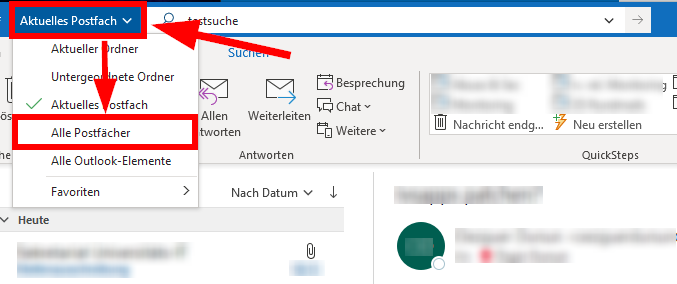
You can also set the default that all integrated mailboxes are searched at once. Please proceed as follows:
- Open Outlook on your computer.
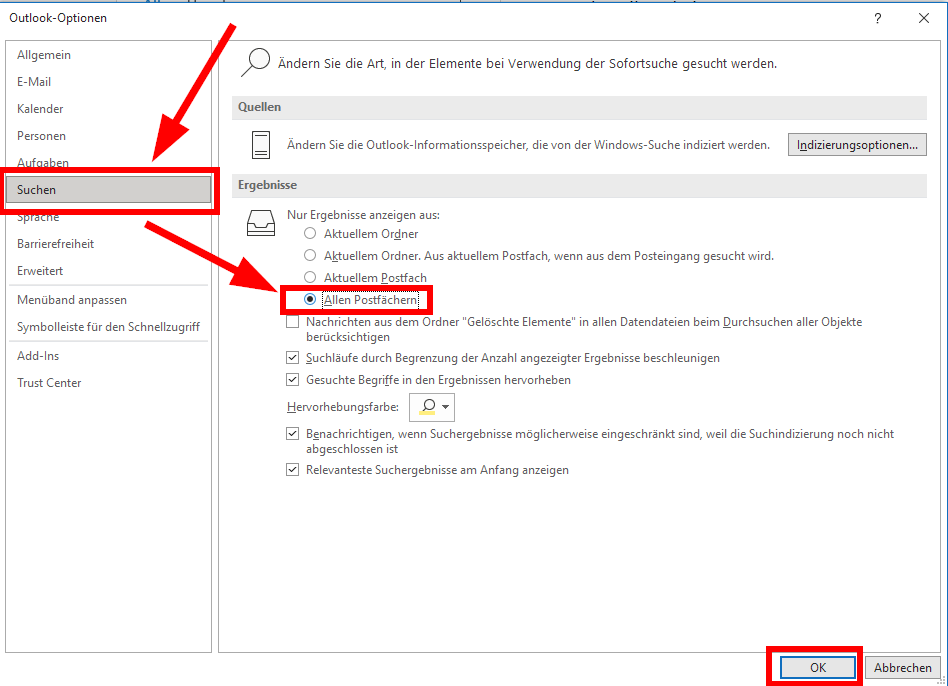
- Click “File” in the upper left corner and “Options” in the lower left corner.
- Click on the “Search” tab in the window that opens.
- Select “All mailboxes” and confirm your selection by clicking the “OK” button:
How do I check emails for accessibility?
Accessible e-mails
Sending accessible e-mails in Outlook
Sending accessible e-mails in Outlook In order to check if the contents of an e-mail are accessible, go to the “Review” tab and select “Accessibility Checker” before sending the e-mail.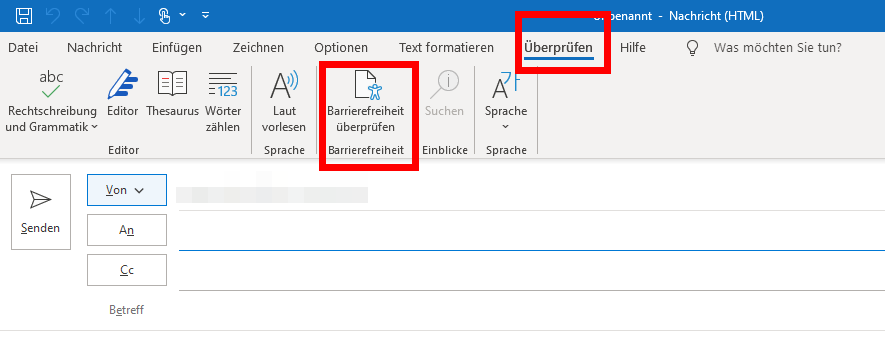
Why do my Outlook meetings not appear in Microsoft Teams and vice versa?
The new Exchange mail system is not fully connected to the Microsoft 365 cloud services of the University, which include Teams. This means that your Microsoft Teams calendar and your Exchange calendar are currently two separate calendars that are not synchronized.
Information: This feature is not available on the M365 instance for students.
What is the reason for not finding a contact in the Outlook address book?
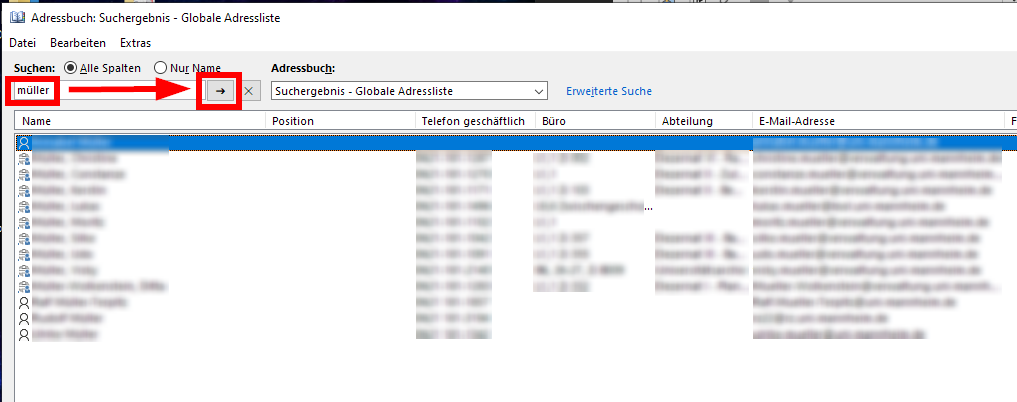
If you are unable to find a contact in the Outlook address book and you are sure that this contact is in the address book, please proceed as follows:
- Open the Outlook address book.
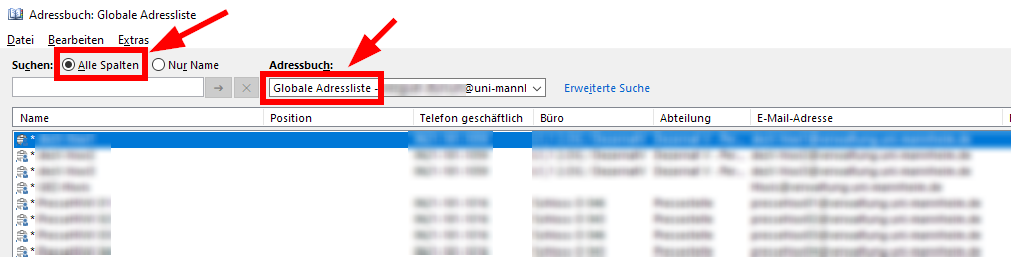
- Make sure that the global address book and the option “All columns” have been selected.
- Enter the name into the search field and click on the arrow symbol.
How do I share contacts?
Sharing Contacts in the Exchange E-mail System
You can share the contacts of your Exchange mailbox with other users of the central Exchange mail system of the University of Mannheim.
Please note:
It is not possible to share the contacts with persons or e-mail addresses outside the Exchange mail system of the University of Mannheim. This also applies to persons whose accounts have not yet been migrated to the central Exchange server.Please note: If you have already shared contacts with this person, stop sharing contacts with this person by following the instructions under “Stop sharing contacts”, before continuing with the steps below.
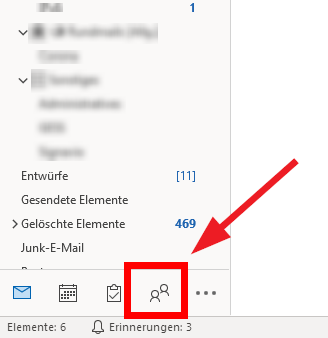
1. Open the “People” view in the lower left corner of Outlook.
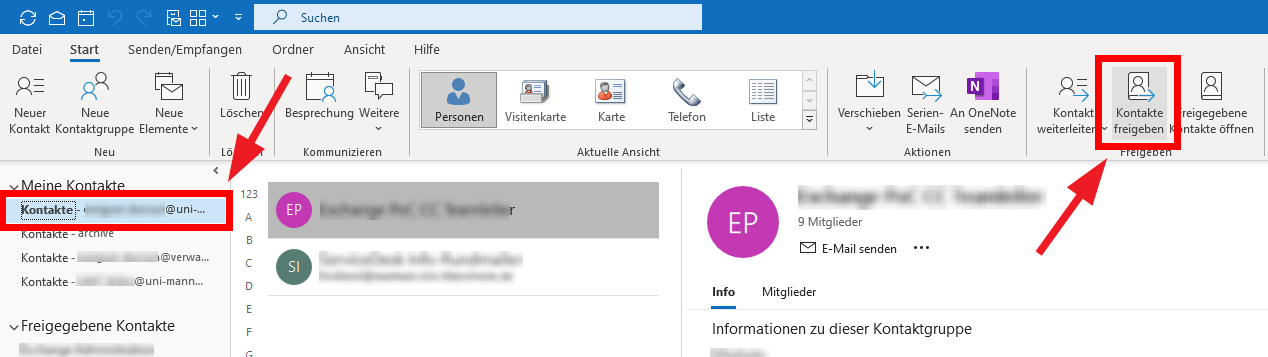
2. Click on the mailbox for which you want to share the contacts to mark the mailbox. Then click the “Share contacts” button:
3. Click on the “To” button in the window that opens, do not enter an address:

4. Please proceed as follows:
- Mark the option “All columns”.
- Enter the name in the search field and click on the arrow symbol.
- In the search results, click on the mailbox for which you want to share the contacts. Repeat this process for additional mailboxes, if applicable.
- If you have added all mailboxes, click the “Ok” button.
5. Now you can enter a message and send the invitation to see the shared contacts by clicking the “Send” button:
6. The recipient must open this e-mail in Outlook and click on the “Open contacts folder” button:
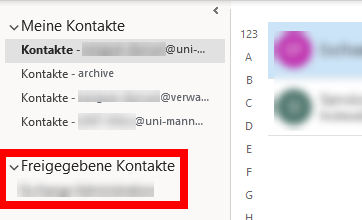
7. Afterwards, the contacts for this mailbox can be found in the “Shared contacts” section:
How do I export emails?
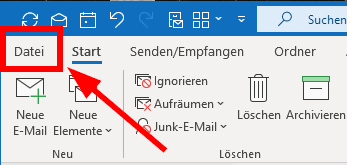
1. Open Outlook and click on “File”.
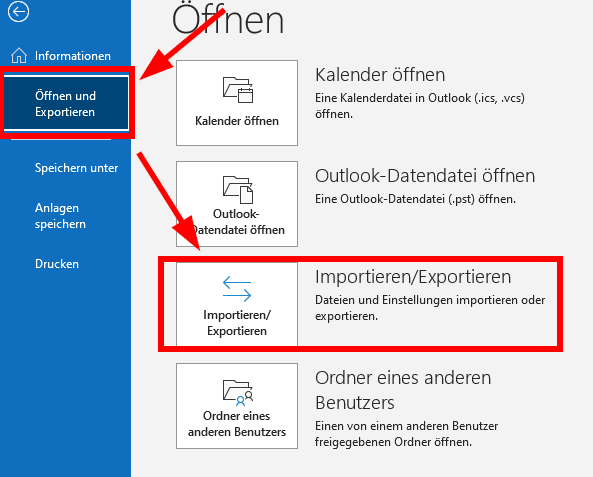
2. Go to the tab “Open and export” and select “Import/export”:
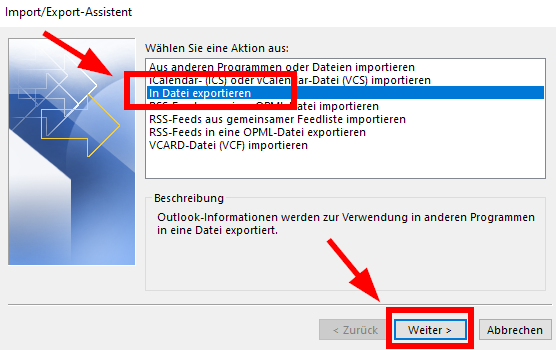
3. In the window that opens, select “Export to a file” and click on “Next”:
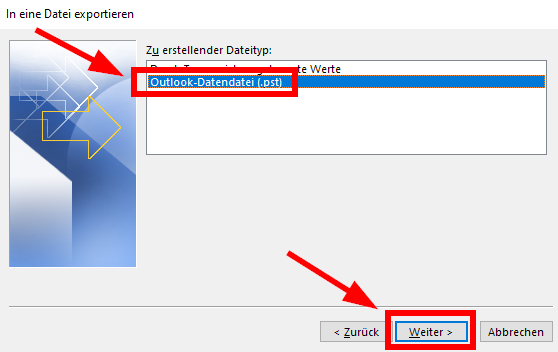
4. Then select “Outlook data file (.pst)” and click on “Next”:
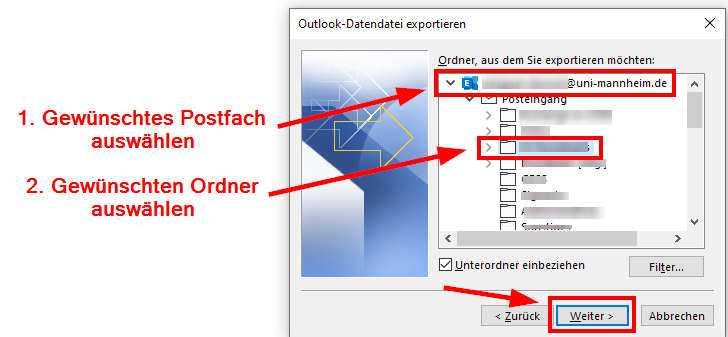
5. Navigate to the relevant mailbox and select the relevant folder by clicking on it. (The subfolders including their contents are automatically included):
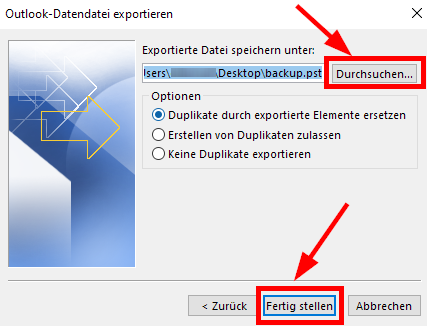
6. In the next window, click “Search” and select a storage location for the new archive file. Then click “Next”:
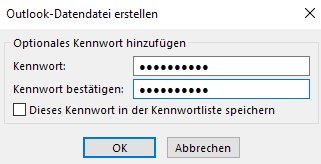
7. You can also select a password that is required to open the file. If you do not want to select a password, you can leave the field empty and continue by clicking “OK”.
8. If required, you can now open this file with Outlook.
The file is permanently open in Outlook like an archive mailbox. You do not need to re-open it every time. (However, you can close the file if you want to):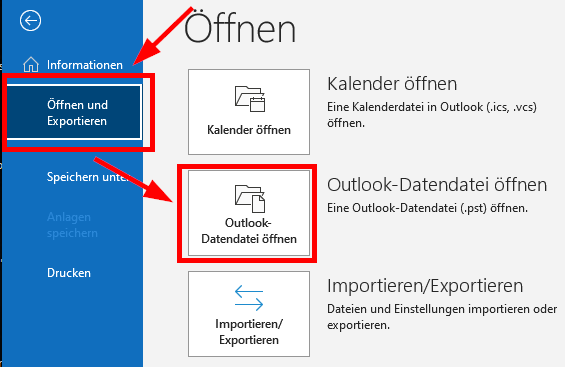
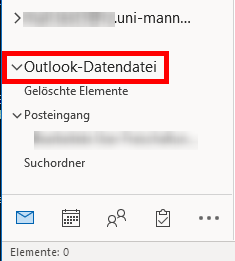
9. After you have stored this file *, you can delete the relevant folder in Outlook to have more storage capacities.
Please make sure to store the archive file not only locally on your computer/
laptop, but also on a network storage location, such as the network folder of your Uni-ID so that this file is still available, even if your computer/ laptop stops functioning. How do I delete a mailbox?
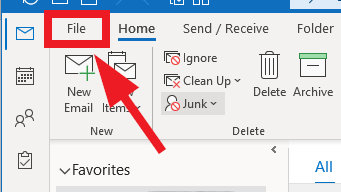
1. Open Outlook and click on the “File” tab:
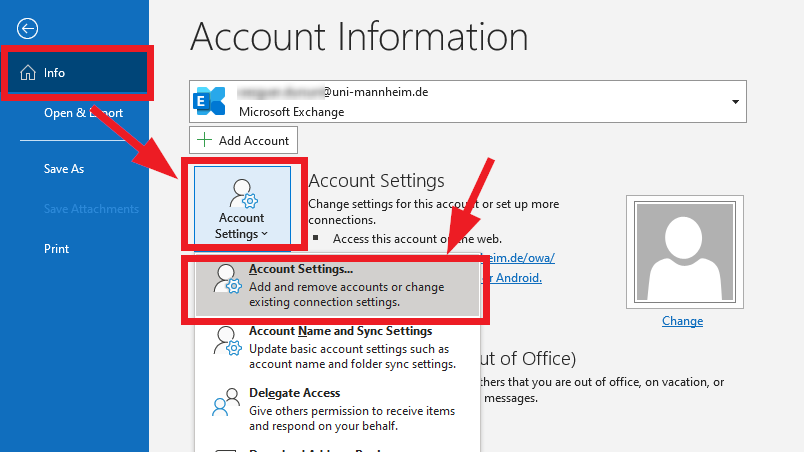
2. Click “Account settings” and “Account settings” in the drop down menu.
3. Select your new Exchange mailbox by clicking on the name of the new mailbox. The Exchange mailbox has the address “[…]@uni-mannheim.de” or “[…]@students.uni-mannheim.de” in the name “column” and “Microsoft Exchange” in the “type” colum. Then click on the “Set as default” button.
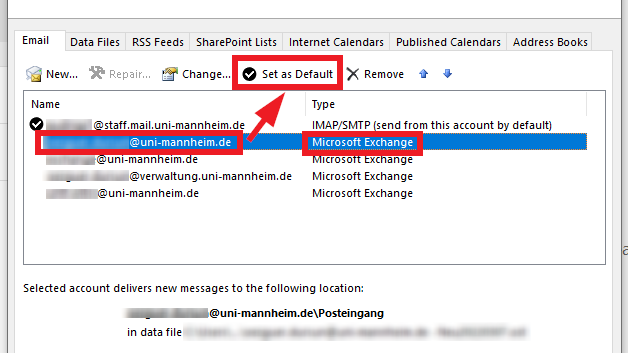
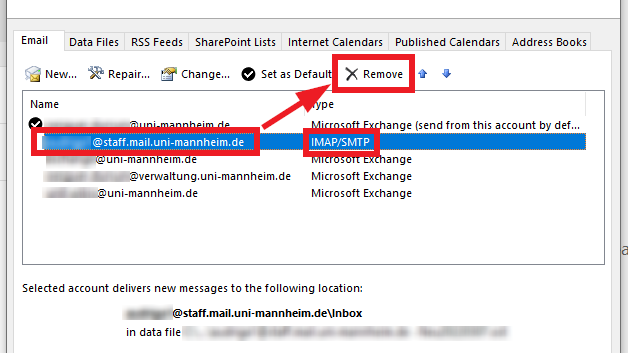
4. Then select your old mailbox, by clicking on the name of the mailbox and then on the “Remove” button:
- An old Horde mailbox often has the entry “IMAP/SMTP” in the “type” column.
- An old administration mailbox often has the ending @verwaltung.uni-mannheim.de in the name column.
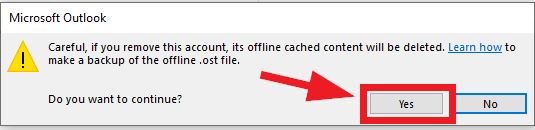
5. Confirm by clicking “yes” in the window that opens:
6. Now close the window, end Outlook and start the program again. Your old mailbox has now been removed and your new mailbox has been set as standard mailbox.
How do I check the sender of an email?
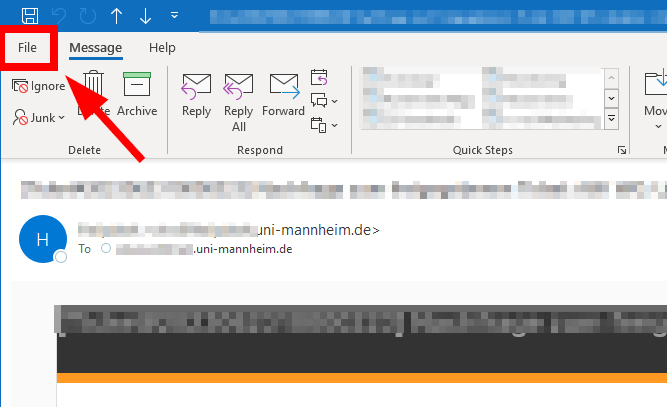
1. Open the e-mail by double-clicking on it and then click on “file” in the upper left corner:
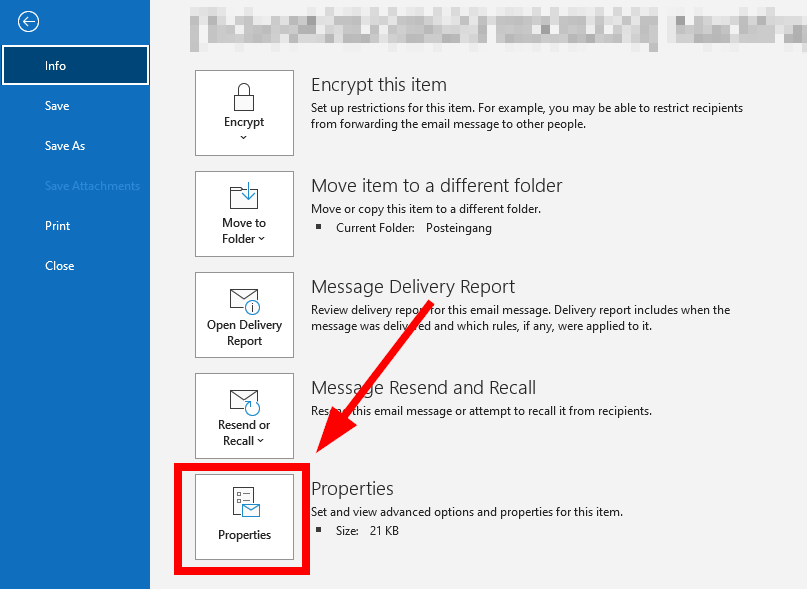
2. Then click on “Properties” in the menu which opens:
3. Copy the entire text below “Internet headers” by marking it (Ctrl + A) and copying it (Ctrl + C). Then close the window:

4. Open a „mail header analysis“ website in your browser, for example, the website provided by Microsoft (https://mha.azurewebsites.net/) and insert the text you copied so that it can be analyzed.
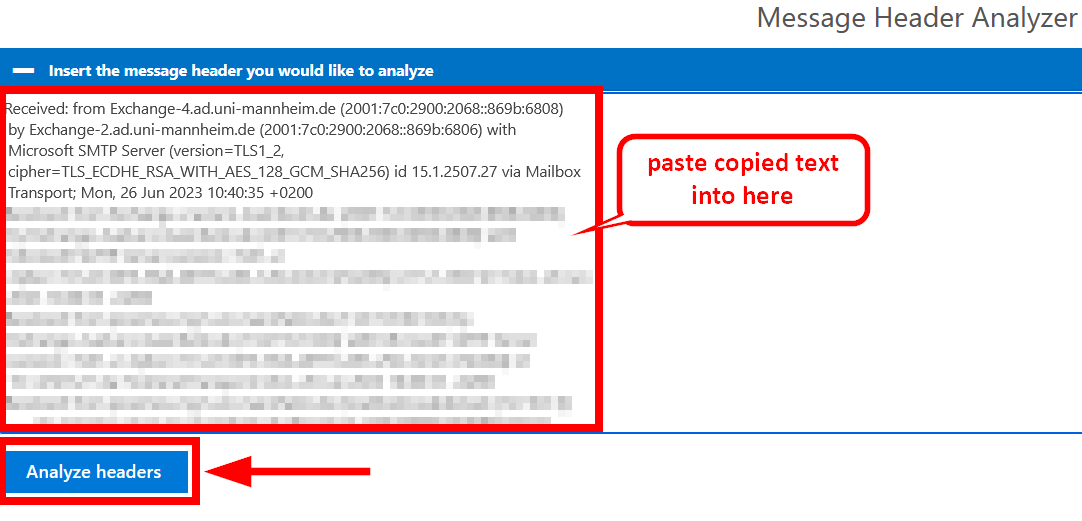
5. Go to the first „Hop“ in the „Submitting Host“ column. There you can see the origin of the e-mail and the sender (server from which the e-mail was sent):
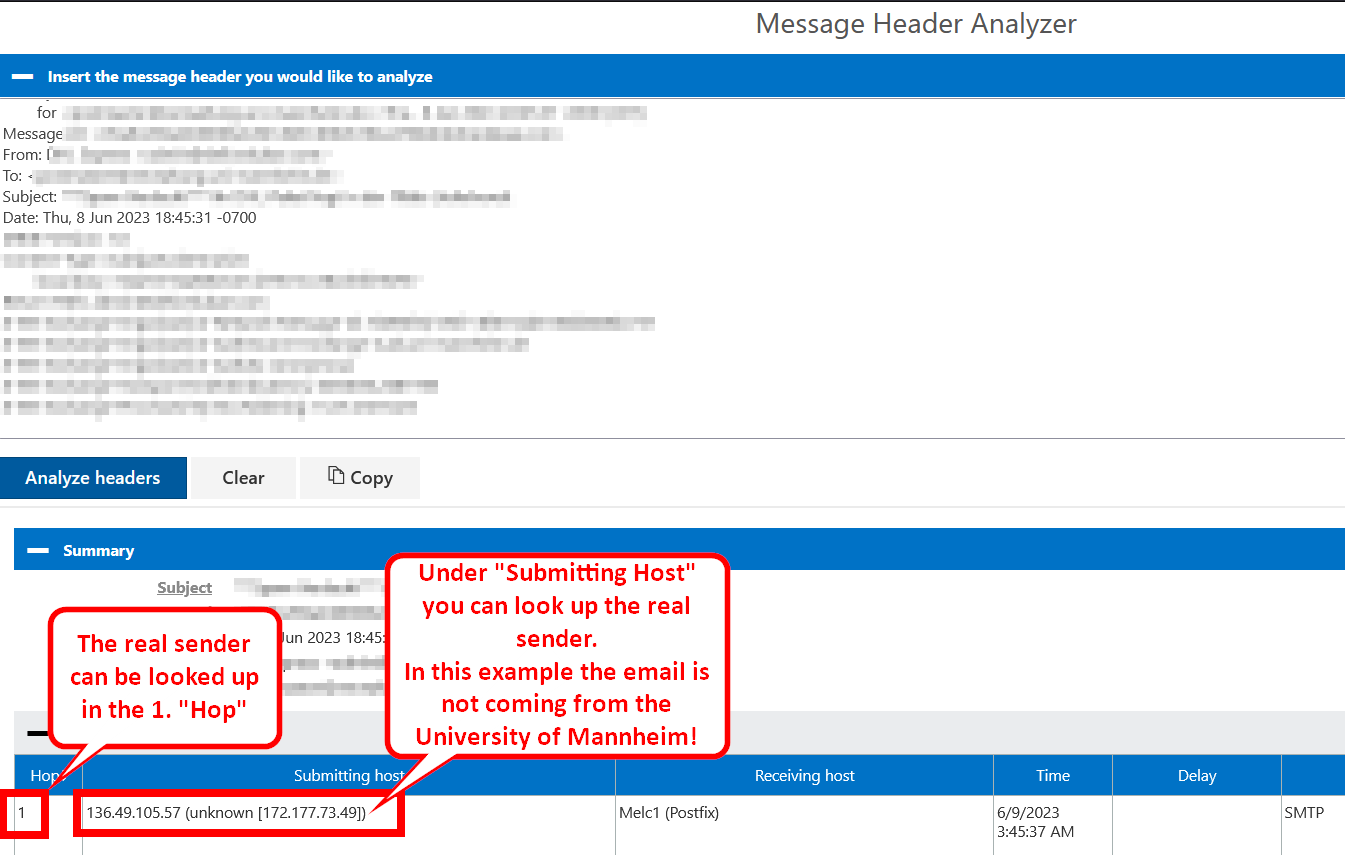
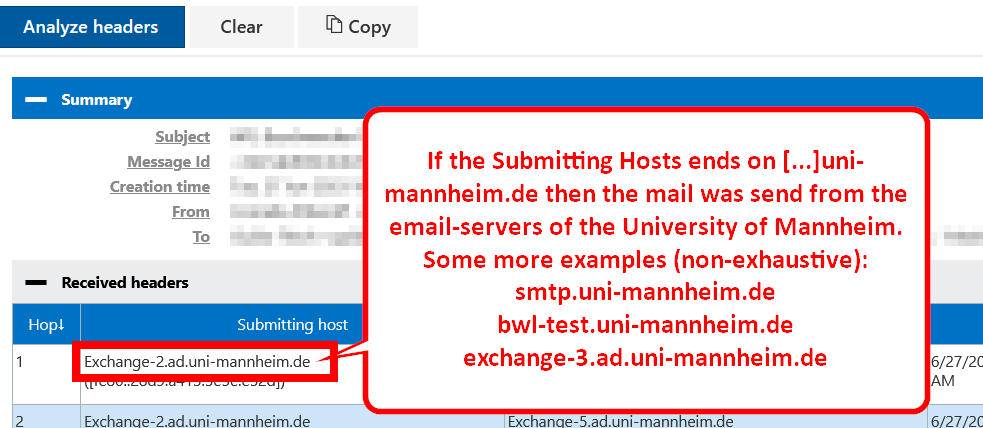
6. If the address ends with […]uni-mannheim.de, the e-mail was sent from the servers of the University of Mannheim.
Further information and instructions can be found in the official Microsoft guides.
When following the instructions, please ensure you check which version of Outlook you are using.